
TECH · PRACTICAL GUIDE
How to transfer everything to a new phone: iPhone, Android and switching between them (2026 guide)
 By S. Dahani and the RealDigitalTech editorial team
Photos, contacts, messages, WhatsApp, apps and eSIM: how to move everything to a new iPhone or Android phone without losing anything, including the new 2026 tools for switching between iPhone and Android.
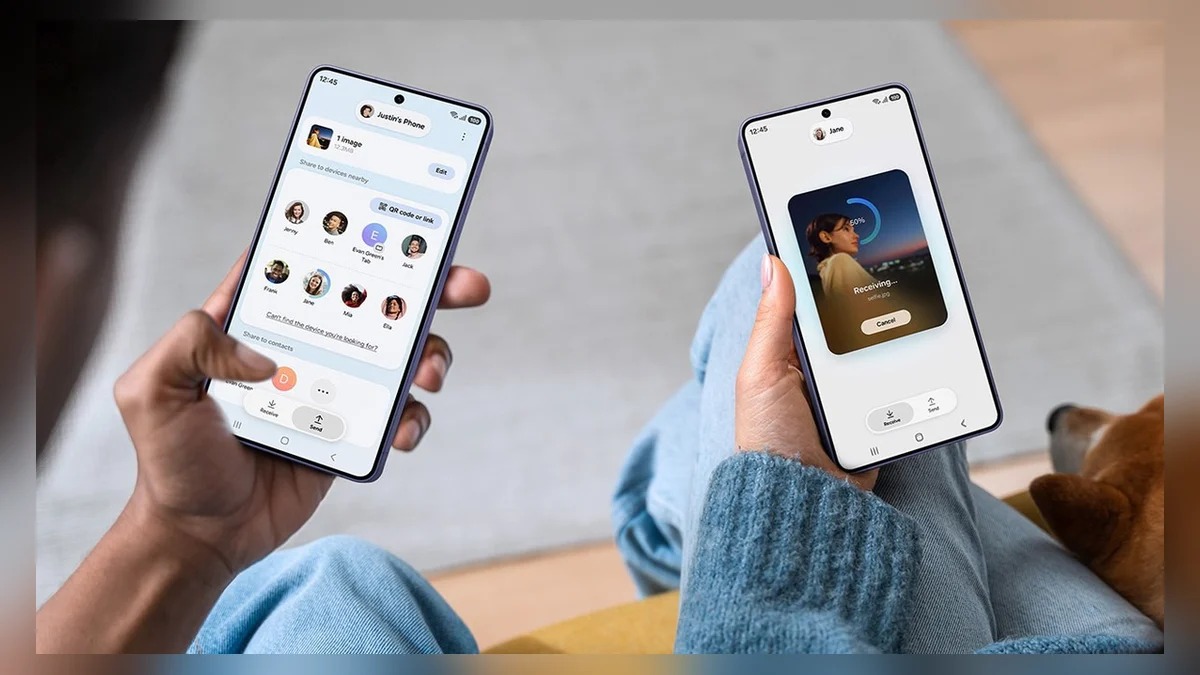
© Samsung
Quick Take
Key figures
Before you start: the 10-minute checklist
A good transfer starts with the old phone. Do these steps first, whatever your new phone is:
- Update both phones to the latest system version. Apple and Google both recommend it before any transfer.
- Charge both phones and keep them plugged in during the transfer. Apple's own guides insist on it.
- Make a fresh backup: iCloud backup on iPhone, Google One backup on Android, or a copy on your computer.
- Check your free storage: the new phone needs at least as much space as the data you are moving, including any microSD card on Android.
- Write down or check your passwords: Apple Account or Google account, email, and your password manager.
- Prepare your two-factor codes: authenticator apps such as Google Authenticator or Microsoft Authenticator do not always transfer automatically (see below).
- Back up WhatsApp and other messaging apps from inside each app.
- Note your banking apps: many require you to re-register the new phone, sometimes with a code sent by post or by SMS.
iPhone to iPhone: Quick Start
Apple's Quick Start is the simplest transfer on any platform.
- Step 1. Turn on the new iPhone and place it next to the old one, with Wi-Fi and Bluetooth on.
- Step 2. A setup card appears on the old iPhone: confirm with your Apple Account, then scan the animation on the new phone.
- Step 3. Choose how to transfer: directly from the old iPhone (you wait until it finishes, but nothing has to download) or from iCloud (you can use the new phone sooner while apps and data download in the background).
- Step 4. Keep both phones close together and plugged in until the transfer ends.
Apps, settings, photos, messages, Health data and most app data come across. Apple Pay cards, some banking apps and authenticator codes may need to be set up again. A wired connection or a computer backup are alternatives if Wi-Fi is slow.
Android to Android: Google backup, cable or Smart Switch
- Any Android phone: during setup, choose to copy apps and data from your old phone. You can connect both phones with a USB-C cable (fastest) or wirelessly, or restore your Google One backup from the cloud. Contacts, photos in Google Photos, SMS, call history, apps and settings come back.
- Samsung Galaxy: Smart Switch, preinstalled on Galaxy phones, transfers from almost any Android phone, by cable or Wi-Fi, and also moves Samsung-specific data such as Samsung Notes and settings.
- Other brands: most manufacturers have their own tool (OnePlus Clone Phone, Xiaomi Mi Mover, etc.), useful for brand-specific settings.
Check afterwards that Google Photos has finished backing up, and that your SMS history is complete if you use Google Messages.
Android to iPhone: Move to iOS, or no app at all
Apple's Move to iOS app (on Google Play) transfers contacts, call history, calendars, messages, photos and videos, albums, files, mail accounts, bookmarks, voice memos, WhatsApp chats and media, and some free apps that exist on both stores.
- Step 1. On the new iPhone, choose Set Up Without Another Device, then Transfer Your Apps & Data, From Android.
- Step 2. Open Move to iOS on the Android phone and enter the code shown on the iPhone.
- Step 3. The Android phone joins a temporary Wi-Fi network created by the iPhone; a USB-C cable between the two phones speeds things up.
- Step 4. Choose what to transfer and don't touch either phone until the iPhone's progress bar finishes.
New in 2026: according to Apple, compatible phones running Android 17 can transfer data and the eSIM to an iPhone without the Move to iOS app, by scanning a QR code. Check with your phone's manufacturer whether your model supports it.
What does not transfer: music, books and PDFs (copy them manually), paid apps, and your phone number activation, which may require your carrier.
iPhone to Android: built-in transfer, Switch to Android or Smart Switch
Leaving the iPhone used to be harder. It is not anymore:
- Built into iOS (new): since iOS 26.3, an iPhone can send photos, contacts, calendars, call history, messages, its Home Screen layout, wallpaper and its eSIM directly to a compatible Android 17 phone. Start setup on the Android phone and scan its QR code with the iPhone's camera. Apple notes that third-party app data only transfers if the developer supports it, and eSIM transfer depends on your carrier.
- Google's Switch to Android app (on the App Store) guides you through moving contacts, photos and calendars to a Google account, and reminds you to turn off iMessage.
- Samsung Smart Switch transfers from an iPhone to a Galaxy by cable or from iCloud.
- WhatsApp: WhatsApp supports moving chat history between iPhone and Android during setup of the new phone; follow the in-app prompts with both phones at hand.
Crucial step: before you switch, turn off iMessage and FaceTime on the iPhone (Settings, Apps, Messages). Otherwise, other iPhone users' messages may keep going to iMessage instead of reaching your new phone. If you no longer have the iPhone, Apple offers an online form to deregister your number from iMessage.
After the transfer: what people forget
- Two-factor codes: in Google Authenticator, use Transfer accounts to export your codes as QR codes, or enable cloud sync before you change phones. Other authenticators have their own export or backup options. Test a few logins on the new phone before resetting the old one.
- eSIM and phone number: if your eSIM did not transfer during setup, use your carrier's app or website. After an eSIM transfer, the number stops working on the old phone.
- Banking and payment apps: log in again and re-add your cards to Apple Pay, Google Wallet or Samsung Wallet.
- Smartwatch and earbuds: an Apple Watch only works with an iPhone; Android watches need to be reset and paired again.
- Check your photos: compare the number of photos and videos on both phones before deleting anything.
- Finally, wipe the old phone: sign out of your accounts, turn off Find My on iPhone (it blocks reactivation), then erase all content and settings. Our guide to buying a refurbished phone safely explains why buyers check this.
Which method should you use?
| You move from... | To... | Best tool |
|---|---|---|
| iPhone | iPhone | Quick Start (direct or via iCloud) |
| Android | Android | Built-in setup copy (cable or Google backup); Smart Switch for Galaxy |
| Android | iPhone | Move to iOS, or app-free QR transfer from compatible Android 17 phones |
| iPhone | Android | iOS 26.3 built-in transfer to compatible Android 17 phones, Switch to Android or Smart Switch |
Frequently asked questions
How long does a transfer take? From a few minutes to over an hour, depending on how many photos and videos you have and on the connection. A cable is usually the fastest.
Can I transfer WhatsApp from iPhone to Android? Yes. WhatsApp supports moving chat history between platforms during setup of the new phone, and Move to iOS includes WhatsApp chats for Android-to-iPhone moves.
Will my apps transfer between iPhone and Android? Free apps available on both stores can be reinstalled, sometimes automatically; their data only moves if the developer supports it. Paid apps must be bought again.
Do I lose my iMessages when I switch to Android? Your message history can be transferred with the new tools, but turn off iMessage first so that new messages reach your Android phone.
When can I erase my old phone? Only after checking that photos, contacts, messages, authenticator codes and banking apps all work on the new one.
Verdict
Changing phones no longer means losing data, even between iPhone and Android. Quick Start remains the gold standard for iPhone owners, Android's built-in copy and Smart Switch are just as easy, and 2026 brought direct transfers, including the eSIM, between iOS 26.3 and compatible Android 17 phones. The real risks are elsewhere: two-factor codes, iMessage and banking apps. Prepare them before you start, and keep the old phone untouched until the new one does everything you need. If you are still choosing, see Pixel 11 Pro vs Galaxy S26 Ultra and iPhone 18 Pro vs Galaxy S26 Ultra.
This guide is based on official documentation from Apple and Samsung and on reports by the outlets listed in our sources. Menus can differ slightly by phone model and software version.
Sources
- Apple Support — Use Quick Start to transfer data to a new iPhone or iPad
- Apple Support — Move from Android to iPhone or iPad
- Apple Support — Transfer an eSIM and data from your iPhone or iPad to an Android device (May 11, 2026)
- MacRumors — iOS 26 adds support for transferring an eSIM to and from Android (June 13, 2025)
- Samsung — How to transfer data from an iPhone or iPad to a new Galaxy device with Smart Switch
- 9to5Google — Google's Switch to Android app for iPhone, hands-on
- PhoneArena — WhatsApp now lets users transfer chat history between Android and iPhone
- TechRadar — How to transfer Google Authenticator to a new phone
How this article was made: our editorial team selected and read the reviews listed above, compared their results and wrote this synthesis, with AI tools assisting the research and drafting. Every figure was checked against the sources, and the article was approved by the publication director. Our AI Disclosure · Our methodology · Report an error: editorial@realdigitaltech.com