
COMPUTING · PRACTICAL GUIDE
How to back up your computer in 2026: external drive, cloud and the 3-2-1 rule
 By S. Dahani and the RealDigitalTech editorial team
A simple, complete plan to protect your files on Windows and Mac. Time Machine, Windows Backup and File History, cloud backup services from Backblaze to IDrive, how much it costs and how to check that your backup really works.
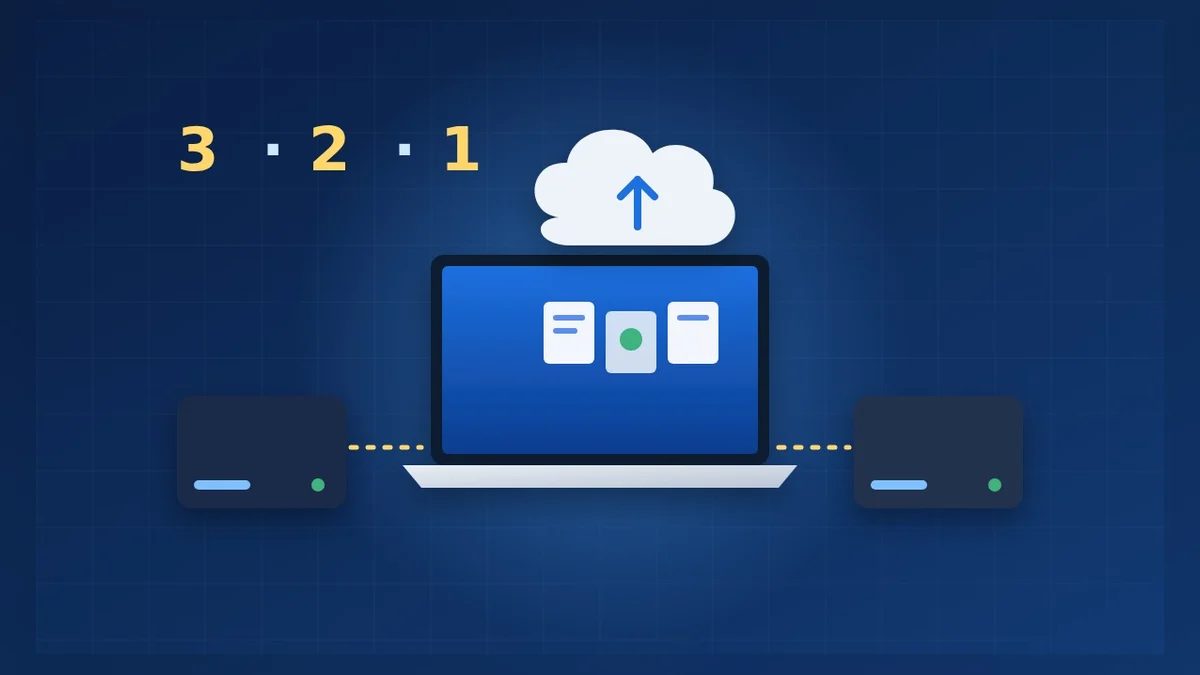
© S. Dahani (AI illustration)
Quick Take
Key figures
Why your computer needs a backup
A laptop can be dropped, stolen, flooded or simply stop starting one morning. Drives fail without warning, and ransomware can lock every file in minutes. Without a backup, years of photos, school work, invoices and documents can disappear at once.
The good news: a solid backup costs little, mostly runs on its own, and takes about one hour to set up.
Sync is not a backup
This is the most common trap. Services such as OneDrive, iCloud Drive or Google Drive keep the same files on all your devices. That is convenient, but if you delete or damage a file, or if ransomware encrypts it, the change is copied everywhere.
A real backup keeps separate copies and older versions, so you can go back in time. Sync services can be part of a backup plan, but they should not be the only copy. We explain the same trap for phones in our phone photo backup guide.
The 3-2-1 rule, made simple
- 3 copies of your important files: the original on your computer, plus two backups.
- 2 different media: for example the computer's internal drive and an external drive.
- 1 copy away from home: a cloud backup service, or a drive kept at work or with family.
For most people, the simplest version is: an external drive at home plus a cloud backup.
On a Mac: Time Machine
Time Machine is built into macOS and free. Plug in an external drive, choose it in Time Machine's settings and let it run.
- Hourly backups: by default, Time Machine backs up every hour and deletes the oldest backups when the drive is full, according to AppleVis.
- Drive size: choose a drive at least twice the size of your Mac's storage. SSDs are faster and tougher; hard drives are cheaper per terabyte.
- Restoring a file: open the folder in Finder, enter Time Machine, go back to the right date and click Restore.
- Restoring a whole Mac: on a new or wiped Mac, use Migration Assistant to bring everything back from the Time Machine drive.
- Limit: a Time Machine backup is not a bootable copy of your Mac.
On Windows: File History and Windows Backup
Windows 11 offers two free tools that do different jobs, as Digital Citizen explains:
- Windows Backup sends your Desktop, Documents, Pictures, Videos and Music folders to OneDrive, and can also save settings such as installed apps, Wi-Fi networks and preferences. It works with a personal Microsoft account, and OneDrive's storage limits apply: 5 GB free, or 1 TB with a Microsoft 365 subscription, per TechRadar.
- File History copies your libraries to an external drive or a network folder and keeps older versions of your files. It only works when the drive is connected, so laptop users should plug it in several times a week.
The best combination for most Windows users: File History on an external drive for versions and big photo libraries, plus OneDrive or a cloud backup service for the off-site copy.
Cloud backup services compared
| Service | Price (US) | Storage | Good for |
|---|---|---|---|
| Backblaze Computer Backup | $9 a month or $99 a year | Unlimited, one computer | Set-and-forget backup of a whole computer |
| IDrive Personal | under $70 the first year, nearly $100 after | 5 TB, several devices | Families with several computers and phones |
| pCloud | $49.99 a year (500 GB), $99.99 (2 TB), lifetime plans | 500 GB to 2 TB | People who prefer paying once |
| CrashPlan Essential | $2.99 a month | Per plan | Small budgets |
| OneDrive with Microsoft 365 | Included in the subscription | 1 TB | Windows users who already pay for Office |
Prices from TechRadar's 2026 guide and Backblaze's pricing announcement. Introductory prices often rise at renewal; check before you pay.
According to TechRadar, Backblaze offers unlimited backup with no file size limits but covers one computer per licence and keeps versions for a limited time on its standard plan; IDrive works across many devices and offers end-to-end encryption.
Choosing an external drive
- Capacity: at least twice the space you use today, so it can hold several versions.
- SSD or hard drive: a portable SSD is faster and survives drops better; a hard drive gives more terabytes for the money.
- Keep it safe: unplug it between backups when possible, so ransomware cannot reach it, and store it away from your computer bag.
- Encrypt it if it contains sensitive files; see our guide to AES-256 USB encryption.
Your monthly checklist
- Check that the last backup date is recent in Time Machine, File History or your cloud app.
- Restore one random file to make sure the backup really works.
- Plug in the external drive if it is usually disconnected.
- Once a year, check the drive's health and replace it after a few years of use.
- Protect the backup account itself with a strong sign-in; our passkeys guide explains how.
Frequently asked questions
Is OneDrive or iCloud enough? They are useful, but they sync deletions and changes. Keep at least one separate copy with versions, on a drive or in a backup service.
How often should I back up? Automatically, every day at least. Time Machine and cloud services run in the background; File History needs the drive connected.
What should I back up first? Photos and videos, documents, school and work files, invoices and anything you cannot download again.
Will a backup slow down my computer? The first backup can take hours or days in the cloud; after that, only changes are sent, and most people never notice it.
Verdict
The safest and simplest plan in 2026 is the 3-2-1 rule: your computer, an external drive with Time Machine or File History, and a cloud backup such as Backblaze or IDrive for the copy away from home. It costs roughly the price of a drive plus about $100 a year, and it protects years of photos and documents. Set it up once, test a restore every few months, and you will never fear a broken or stolen laptop again. Choosing a new computer? Read our student laptop guide.
This guide is based on guides and pricing published by the sources cited. RealDigitalTech did not test these services itself. Prices change often, especially after the first year; check the provider's site before subscribing.
Sources
How this article was made: our editorial team selected and read the reviews listed above, compared their results and wrote this synthesis, with AI tools assisting the research and drafting. Every figure was checked against the sources, and the article was approved by the publication director. Our AI Disclosure · Our methodology · Report an error: editorial@realdigitaltech.com