
TECH · PRACTICAL GUIDE
Passkeys in 2026: how to sign in without a password on Google, Apple, Microsoft and Amazon
 By S. Dahani and the RealDigitalTech editorial team
Passkeys replace passwords with your fingerprint, face or PIN, and cannot be phished. How they work, where to turn them on, how to avoid getting locked out and what to keep in mind before you switch.
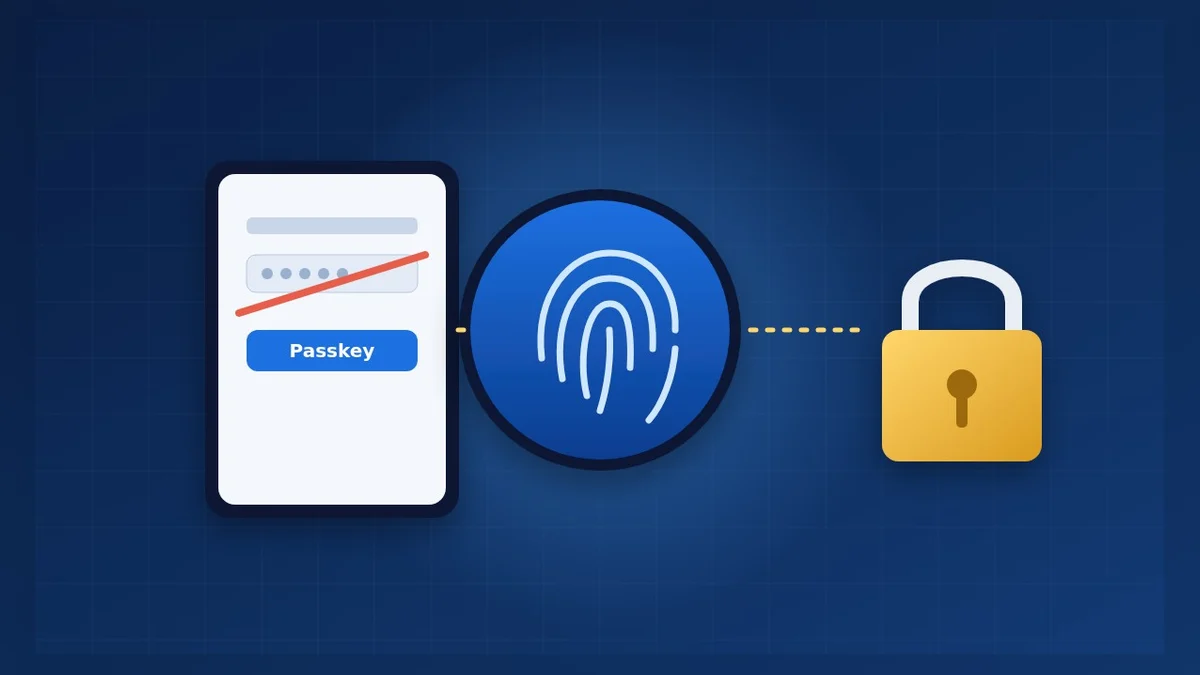
© S. Dahani (AI illustration)
Quick Take
Key figures
What is a passkey?
A passkey is a way to sign in without typing a password. When you create one, your device generates two linked keys: one stays on your phone or computer, the other is kept by the website. To sign in, you simply unlock your device as usual, with your fingerprint, face or PIN, and the two keys are matched, as Tom's Guide explains.
The key on your device never leaves it, and it only works with the real website it was created for. That is the big difference with a password: a fake website cannot trick you into handing over a passkey, and a data breach at the website does not reveal anything that can be reused elsewhere.
Why switch now?
Passwords remain the weak point of online security. In the FIDO Alliance's 2026 survey of 11,000 people in ten countries, 33% had an account compromised or received a breach notice in the past year, and 47% said they would probably abandon a purchase or a sign-in if they could not remember a password.
The big platforms have moved. Google made passkeys the default sign-in option for personal Google accounts in October 2023, saying they are 40% faster than passwords. Since May 2025, new Microsoft accounts are passwordless by default: users are asked to create a passkey instead of a password, according to BleepingComputer. The FIDO Alliance estimates that about 5 billion passkeys were in use worldwide in May 2026, and that 75% of the people surveyed had enabled at least one.
Where to turn them on first
Not every site offers passkeys yet: in 2024, the FIDO Alliance counted them on 20% of the world's top 100 websites. Among the services that support them, according to the FIDO Alliance, are Google, Apple, Microsoft (including Xbox and Microsoft 365), Amazon, PayPal, PlayStation, Nintendo, TikTok, Shopify and Adobe.
Start with the accounts that would hurt most if they were stolen:
- Your main email: whoever controls it can reset all your other passwords.
- Your Apple, Google or Microsoft account: they hold your photos, backups and payment methods.
- Shopping and payment accounts: Amazon, PayPal and your favourite stores.
- Gaming accounts: PlayStation, Xbox and Nintendo accounts are popular targets and often hold saved cards.
In each service, look in the security or sign-in settings for "passkey", then follow the steps. On a website you already use, the usual path is: sign in, open your account settings and choose create a passkey.
How it works on your devices
- iPhone, iPad and Mac: passkeys are saved in your iCloud Keychain, available in Apple's Passwords app on recent versions of iOS and macOS, and synced across your Apple devices. Turn on iCloud Keychain, then confirm with Face ID, Touch ID or your passcode when a site offers a passkey.
- Android: passkeys are created with your screen lock (fingerprint, face or PIN) and, for most people, saved in the Google account so they are available on their other Android devices.
- Windows: Windows Hello (face, fingerprint or PIN) protects passkeys saved on the PC.
- On a computer that is not yours: many sites show a QR code; scan it with your phone, which uses its own passkey, without leaving anything on the borrowed computer.
- Password managers: several managers can now store and sync passkeys across iPhone, Android and Windows, which is handy if you mix brands. See our guide to choosing a password manager.
Do not get locked out: your recovery plan
A passkey is only as safe as the device and account that hold it. Before you switch, check these points:
- Keep sync turned on (iCloud Keychain, Google account or your password manager), so a lost phone does not mean lost passkeys.
- Update your recovery options: a current phone number and backup email on your main accounts.
- Keep a second way in on critical accounts: a second device with a passkey, or backup codes printed and stored at home.
- Protect the device itself: a strong PIN or passcode, because it now unlocks your accounts.
- Before you sell or give away a phone, check that your passkeys are synced to your new device. Our phone data transfer guide helps with the move.
Limits to know
- Not everywhere yet: many sites still only accept passwords, so you will live with both for a while.
- Mixing ecosystems can be confusing: a passkey saved in iCloud Keychain is not automatically on your Windows PC; a cross-platform password manager or the QR code method solves this.
- The password often stays in the background: on many sites, creating a passkey does not delete the old password. Where the option exists, as on Microsoft accounts, you can remove it from the security settings.
- Shared family accounts: a passkey is tied to a person's device; for shared streaming or shopping accounts, a password manager with sharing is often simpler.
Frequently asked questions
Is a passkey the same as two-factor authentication? No. A passkey replaces the password and is resistant to phishing on its own, because it only works on the real site. Many services treat it as strong enough to skip the extra code.
What happens if my phone is stolen? The thief would also need your fingerprint, face or PIN. With sync turned on, you recover your passkeys on a new device by signing in to your Apple or Google account or your password manager.
Can websites see my fingerprint or face? No. Biometrics only unlock your device; the website never receives them.
Do I need to delete my passwords? Not right away. Start by adding passkeys to your main accounts, then remove passwords where the service allows it and you are confident in your recovery plan.
Verdict
Passkeys are the most important security upgrade most people can make in 2026: they are faster than passwords and cannot be phished. Turn them on first for your main email, your Apple, Google or Microsoft account, and your shopping and payment accounts, keep sync and recovery options up to date, and live with passwords elsewhere until more websites catch up. For your files, complete the picture with our guide to backing up a computer and our phone photo backup guide.
This guide is based on announcements, surveys and how-to guides published by the sources cited. Menu names can change with system updates; check your device's help pages if a setting has moved.
Sources
- FIDO Alliance — FIDO Alliance reports accelerating global passkey adoption on World Passkey Day 2026 (May 7, 2026)
- FIDO Alliance — New survey: half of people use passkeys as frustrations with passwords continue (May 2, 2024)
- Android Central — Google is making passkeys the default option for personal accounts (October 10, 2023)
- BleepingComputer — Microsoft makes all new accounts passwordless by default (May 2, 2025)
- Tom's Guide — How to set up passkeys on iPhone, iPad and Mac
How this article was made: our editorial team selected and read the reviews listed above, compared their results and wrote this synthesis, with AI tools assisting the research and drafting. Every figure was checked against the sources, and the article was approved by the publication director. Our AI Disclosure · Our methodology · Report an error: editorial@realdigitaltech.com