
COMPUTING · PRACTICAL GUIDE
Slow computer? 12 free fixes to speed up Windows and Mac in 2026
 By S. Dahani and the RealDigitalTech editorial team
Startup apps, full storage, updates, background apps, malware and more. Twelve free fixes for a slow Windows PC or Mac, in the right order, and how to tell when an SSD, more memory or a new computer is worth it.
© S. Dahani (AI illustration)
Quick Take
Key figures
Before you start: find out what is slow
"Slow" can mean different things: a long startup, apps that take ages to open, a browser that freezes, or a fan that never stops. Spend two minutes finding out what is actually happening:
- Windows: press Ctrl + Shift + Esc to open Task Manager. In Processes, sort by CPU, Memory or Disk to see what is working hard. The Performance tab shows whether memory or the disk is at 100%.
- Mac: open Activity Monitor (Applications → Utilities), and look at the CPU and Memory tabs. Apple recommends it to check how much memory your Mac and its apps are using.
Keep this window in mind. You'll come back to it to check whether each fix helped.
Fixes 1 to 4: the basics
1. Restart properly. Many people put their computer to sleep for weeks. A restart closes stuck apps and finishes pending updates. On Windows, use Start → Power → Restart, as Microsoft advises.
2. Install updates. Updates fix bugs that can slow the system.
- Windows: Settings → Windows Update → Check for updates, then Advanced options → Optional updates for drivers.
- Mac: System Settings → General → Software Update.
3. Close what you don't use. Both Microsoft and Apple put this on their list. Twenty open browser tabs and three chat apps take up a lot of memory.
4. Scan for malware. On Windows, go to Settings → Privacy & security → Windows Security → Virus & threat protection → Quick scan. Unwanted toolbars, "optimizers" and unknown apps are worth removing too.
Fixes 5 to 8: storage and startup
5. Free up storage. An almost full drive slows everything down, and Apple lists a lack of free space as the first cause of a slow Mac.
- Windows: Settings → System → Storage, then turn on Storage Sense and remove Temporary files. The classic Disk Cleanup tool still works too.
- Mac: System Settings → General → Storage shows recommendations, such as storing files in iCloud or emptying the Trash automatically.
As a rule of thumb, try to keep at least 10 to 15% of the drive free. Move old videos and photos to an external drive, after following our backup guide.
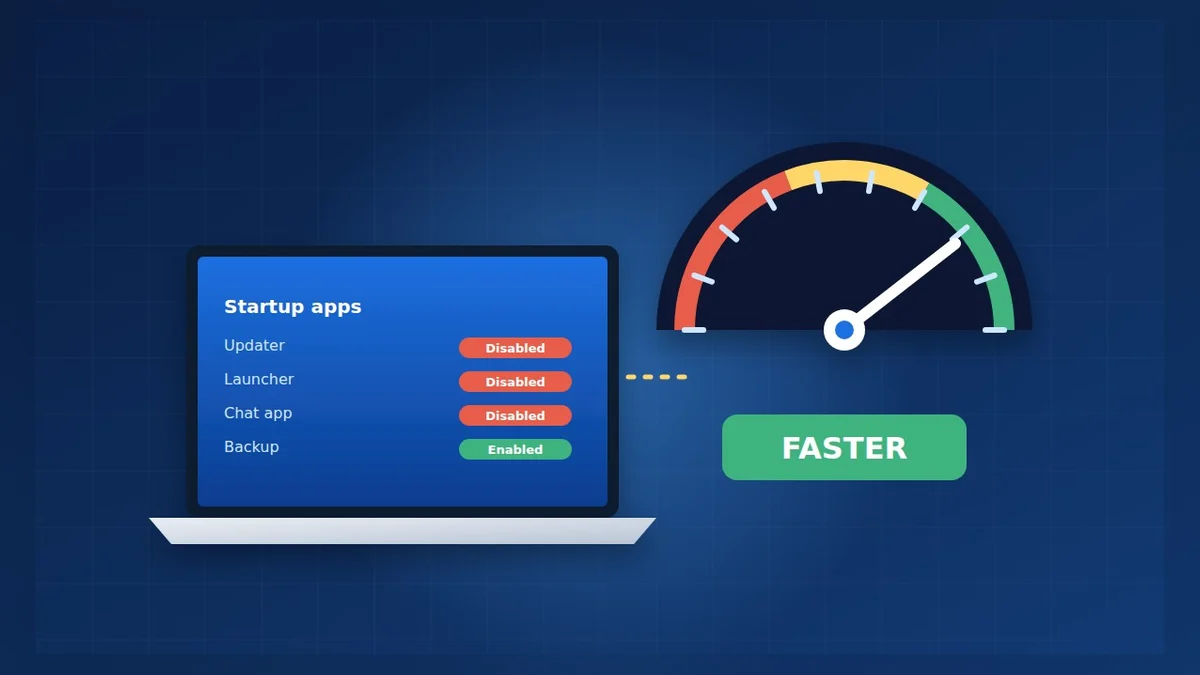
6. Trim startup apps. This is often the biggest win for a slow startup.
- Windows: in Task Manager, open Startup apps, right-click what you don't need at startup and choose Disable.
- Mac: System Settings → General → Login Items & Extensions, select an app in Open at Login and click the minus (–) button, according to Apple.
Keep your antivirus, cloud backup and essential drivers. Remove launchers, updaters and apps you open only now and then.
7. Uninstall apps you no longer use. On Windows, go to Settings → Apps → Installed apps, then choose … → Uninstall. On a Mac, drag the app from Applications to the Trash.
8. Stop apps running in the background. On Windows 11, Microsoft explains how to set Let this app run in the background to Never for apps that don't need it, under Settings → Apps → Installed apps → … → Advanced options.
Fixes 9 to 12: fine-tuning
9. Lighten visual effects. On older Windows PCs, search for "Adjust the appearance and performance of Windows" in Start, then choose Adjust for best performance in the Visual Effects tab.
10. Choose the right power mode. In Settings → System → Power & battery → Power mode, choose Best performance. It uses more battery on a laptop, so switch back when you're unplugged.
11. Optimize the drive. Search for "Defragment and Optimize Drives" in Start, select the drive and click Optimize. Windows handles both hard drives and SSDs correctly. On a Mac, if you suspect a disk problem, Apple recommends Disk Utility to check and repair it.
12. Cut down notifications. Constant pop-ups interrupt you and use resources. Go to Settings → System → Notifications on Windows, or System Settings → Notifications on a Mac, and turn off the ones you don't need.
Avoid these false good ideas
- "PC cleaner" or "booster" apps: the built-in tools do the same job for free, and some of these apps are adware or worse.
- Registry cleaners: they bring no measurable gain and can break Windows.
- Disabling Windows security or updates "for speed": the gain is tiny and the risk is real.
- Resetting the computer straight away: it's a last resort. Try the 12 fixes first, and back up before any reset.
When an upgrade or a new computer is worth it
If your computer is still slow after the 12 fixes, the cause is probably the hardware:
- An old hard drive (HDD): if Task Manager shows the disk at 100% for minutes at a time, replacing the hard drive with an SSD is often the most effective upgrade for an older PC. Ask a repair shop if you're not comfortable doing it.
- Too little memory: Windows 11 needs at least 4 GB of RAM, according to Microsoft, which is very tight for modern browsing. If memory is constantly full, check whether your PC accepts more. Many recent laptops and all recent Macs have memory soldered to the board.
- A very old computer: if it can't run Windows 11 or the current macOS, read our Windows 10 guide for the options, or our student laptops guide to choose a replacement.
Frequently asked questions
How often should I restart? At least once a week, and after big updates.
Does a reset make a PC faster? Often, yes, because it removes years of accumulated apps. But it takes time and requires a full backup. Keep it for last.
Is my Mac slow because it's old? Not always. Start with storage and login items, which are the two causes Apple highlights. If an app needs more than your Mac can offer, check its system requirements.
Do I need an antivirus on Windows 11? The built-in Microsoft Defender is enough for most people if you keep Windows updated.
Verdict
Before you buy anything, spend 30 minutes on the free fixes: restart, update, free up storage, trim startup apps and check Task Manager or Activity Monitor. That's enough to fix most slow computers. If the machine is still slow, an SSD or more memory can give an older PC a second life, and if it's really too old, it's time to plan a replacement calmly.
This guide is based on Microsoft's and Apple's official help pages. Menu names can change with updates; check your system's help pages if a setting has moved.
Sources
How this article was made: our editorial team selected and read the reviews listed above, compared their results and wrote this synthesis, with AI tools assisting the research and drafting. Every figure was checked against the sources, and the article was approved by the publication director. Our AI Disclosure · Our methodology · Report an error: editorial@realdigitaltech.com